MEETING ROOMS
Booking Meetings
Streamline your office management with the Team Today Meeting Room Finder. Whether you need a quick huddle space or a large board room, our scheduler makes finding the right space effortless.
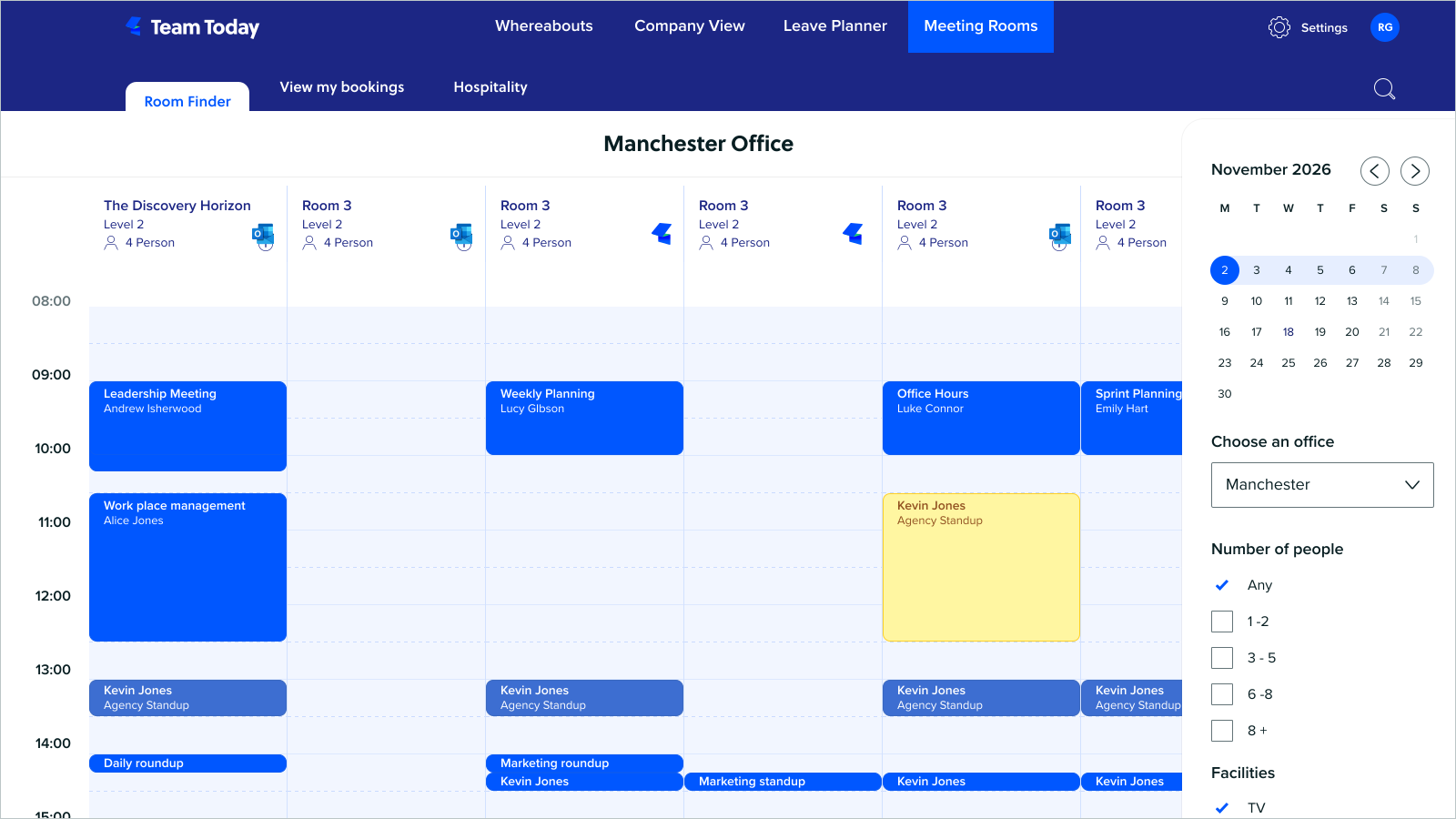
How it works
Team Today supports two distinct types of meeting rooms:
- Team Today Rooms: Managed exclusively within our platform. These are ideal for internal spaces that don't require an Outlook calendar.
- Outlook Integrated Rooms: Linked directly to existing Outlook meeting rooms. This provides a "true" meeting experience, automatically syncing schedules to prevent double bookings.
How to Book a Meeting Room
1. Finding a Room
- Login: Access Team Today via the web portal or the MS Teams app.
- Navigate: Click the Meeting Room tab at the top of the screen.
- Search: Select your desired Office Location and Date from the right-hand sidebar. (The system defaults to your primary office).
- Filter: Refine your search using the filters on the right to find rooms based on Floor, Facilities (e.g., TV, Video Conferencing), and Capacity.

2. Reserving Your Space
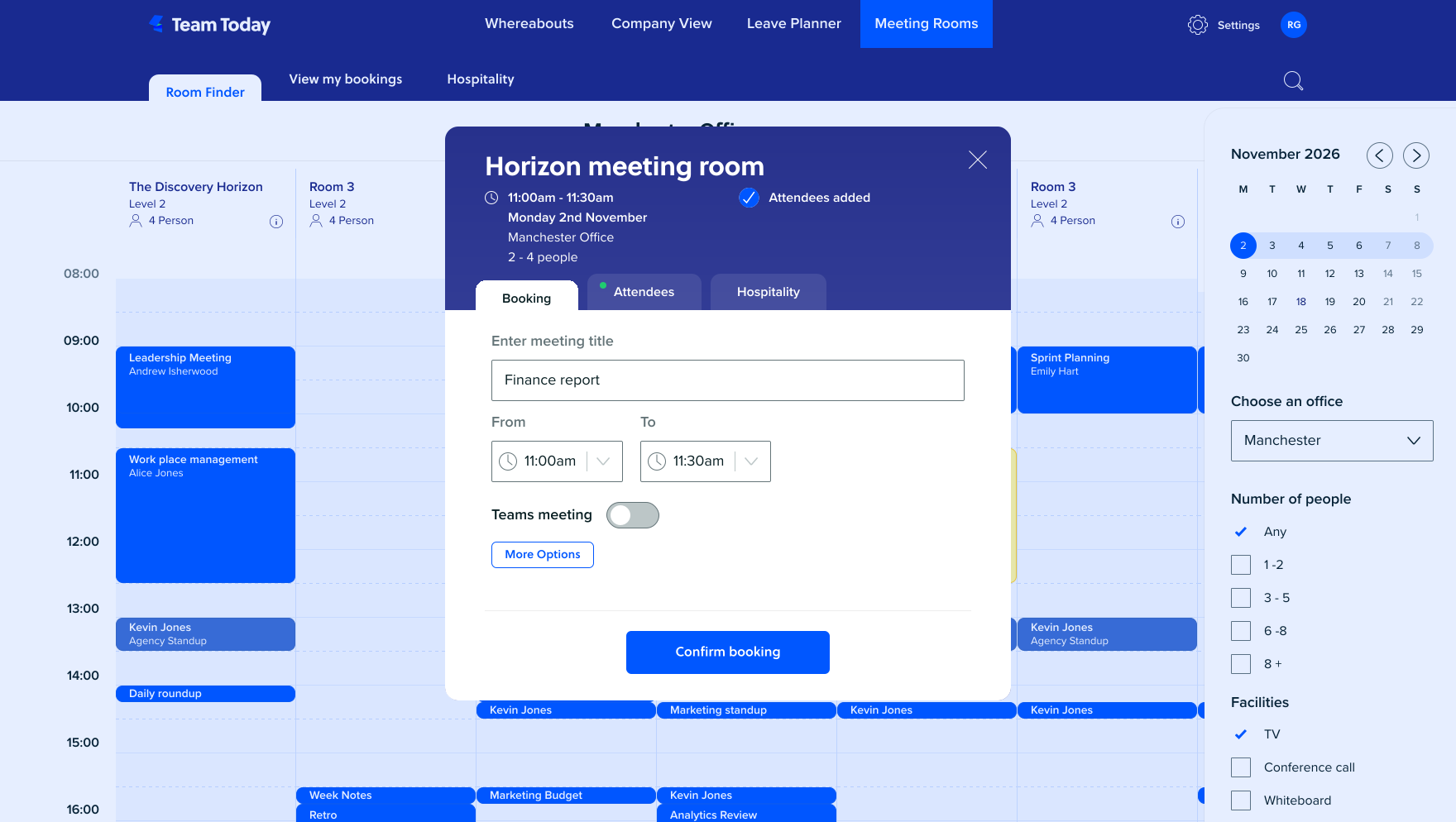
- Select Time: Once you find an available slot in your preferred room, click the specific time you wish to book.
- Meeting Details: Enter your meeting title and confirm the start/end times.
- Advanced Options: Click Show More to add a meeting description or toggle the MS Teams Meeting option (off by default).
- Attendees: Use the Attendee tab to invite colleagues. If you are using Outlook Integrated Rooms, you can also assign a different "Host" so they own the calendar invite.
- Hospitality: If enabled, use the Hospitality tab to request catering or refreshments.
- Confirm: Tap Confirm Booking. Once processed, the room is yours.
Note: For Outlook-linked rooms, the reservation is synced immediately to the Outlook calendar. For standard Team Today rooms, a meeting invite is sent to the booker.
Managing Your Bookings
Editing a Meeting
- In Team Today: If you are the meeting owner or an admin, simply click the booking in the Team Today calendar to open the edit panel, make your changes, and confirm.
- In Outlook: If the meeting was originally created in Outlook, any updates to the time or location must be made within Outlook to ensure the calendars remain in sync.
Cancelling a Meeting
- Click the booking in the Team Today Meeting Room view.
- Select Cancel Booking from the panel.
- Important: If the room was booked via Outlook, we recommend cancelling the event directly in your Outlook calendar to fully release the room resource.